
Getting started
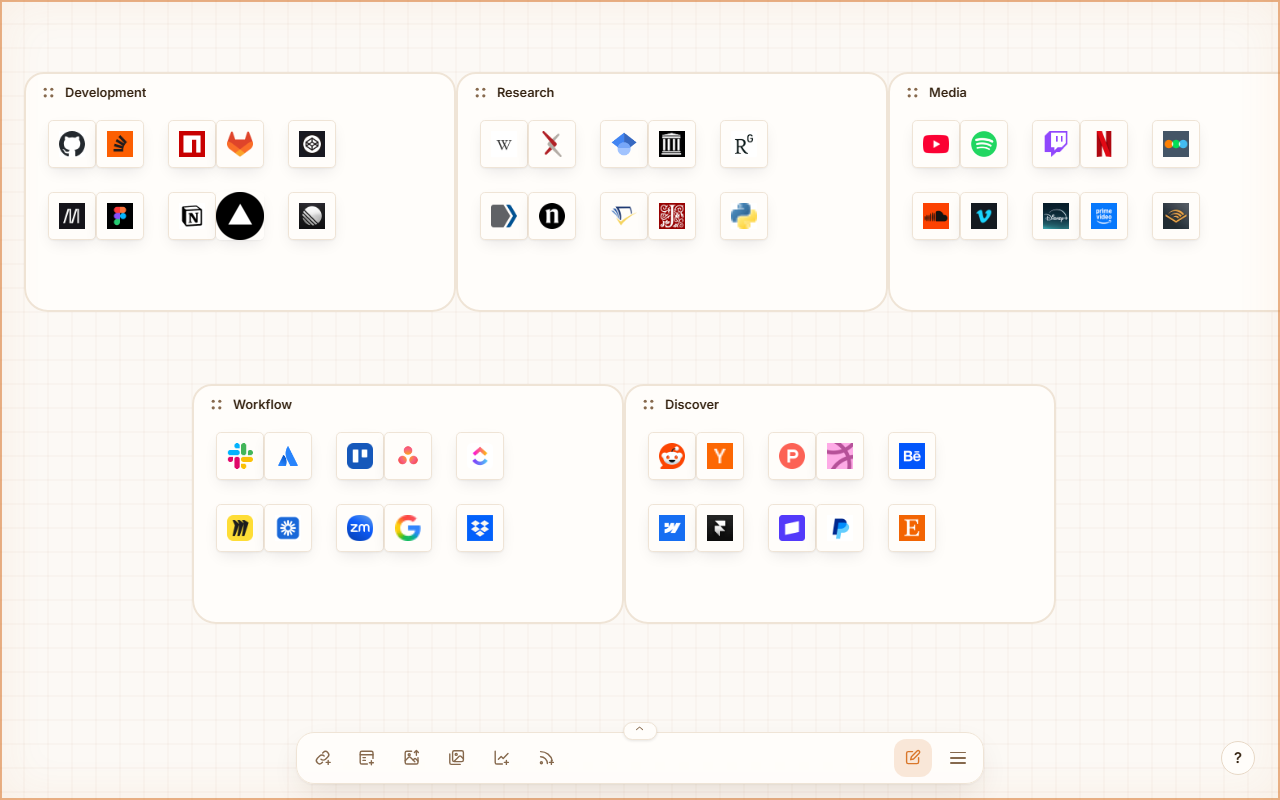
Linkhaven turns a blank tab into an infinite canvas. You place link cards, groups, pictures, live charts and news feeds on it and arrange them the way you think about them. Everything is stored in your browser.
Install the extension
Linkhaven replaces the new tab page in Chrome, Edge and Firefox.
| Browser | Store |
|---|---|
| Chrome | Chrome Web Store |
| Edge | Edge Add-ons |
| Firefox | Firefox Add-ons |
After the install, open a new tab. The extension asks for no permissions and loads no remote code.
Use it as an app on phone, tablet or PC
Linkhaven also runs as an installable web app (PWA): schulzoli.github.io/Linkhaven/app/.
- Android (Chrome): open the link, then menu → Install app.
- iPhone and iPad (Safari): open the link, then Share → Add to Home Screen.
- Windows, macOS, Linux (Chrome or Edge): open the link, then the install icon in the address bar.
Once installed it opens without a network, like the extension. Your data stays in that browser on that device; the app and the extension each keep their own. To use the same workspaces everywhere, turn on device sync.
Run it from source
You need Node.js 22 or later.
git clone https://github.com/SchulzOli/Linkhaven.git
cd Linkhaven
npm install
npm run dev
Open http://localhost:5173. To load your own build as an extension, see Browser extension.
Your first board
- Paste a URL anywhere on the canvas, or select Add link in the taskbar. Linkhaven creates a card with the site's icon.
- Select Add group and drag cards into the group body. Groups can hold other groups.
- Switch between edit mode and view mode with the pencil/eye button. In view mode a click opens the link; in edit mode you move, resize and style nodes.
- Open the menu (☰) to pick a theme, set defaults for new nodes, or manage workspaces.
Taskbar
| Button | What it does |
|---|---|
| Add link | Quick add: URL and title for a new card |
| Add group | A new group at the center of the view |
| Upload image | Places an image file as a picture node |
| Open image gallery | All images stored by Linkhaven |
| Add chart | A chart node, see Charts |
| Add news feed | A news feed node, see News feeds |
| Edit / view mode | Toggles between arranging and using the board |
| Menu (☰) | Options, Themes, Templates, Statistics, Data |
| ? | Keyboard shortcuts and the privacy summary |